What are Tables?
Tables are the starting point for any data exploration in Lightdash — they’re the data you can query. Lightdash stays in sync with your dbt project, so Tables come from the dbt models defined in your project’s YAML files. If a dbt model has a YAML definition, it shows up in Lightdash as a Table.Choose which models become Tables
lightdash dbt run documents every column in your models as a dimension and generates a Table for each one. It supports dbt’s model selection syntax, so you can generate Tables for your whole project at once or narrow to a subset — for example, everything tagged lightdash:
Step 1: Install the Lightdash CLI tool
The Lightdash CLI is the recommended way to develop your dbt + Lightdash project. It makes development faster and easier, as well as giving you options for building more powerful automation to manage your Lightdash instance. Install it with Homebrew (macOS, Linux, or Windows via WSL):Don’t have Homebrew, or need another install method (direct binary download, npm)? See the full CLI installation guide.
Step 2: Login to the CLI
We’ve automatically generated a personal access token that you can use to login to the CLI, so you just need to copy-paste that command in your Terminal. It’s Step 2. and should look something like this:{{ lightdash_domain }} is app.lightdash.cloud for Lightdash Cloud users. Or your own domain if self-hosting. If you want to login using another method, then you can check out our authentication methods here.
Step 3: Add Tables
If you’re using dbt Cloud, you’ll need to clone your repo to your local machine before completing the next steps.
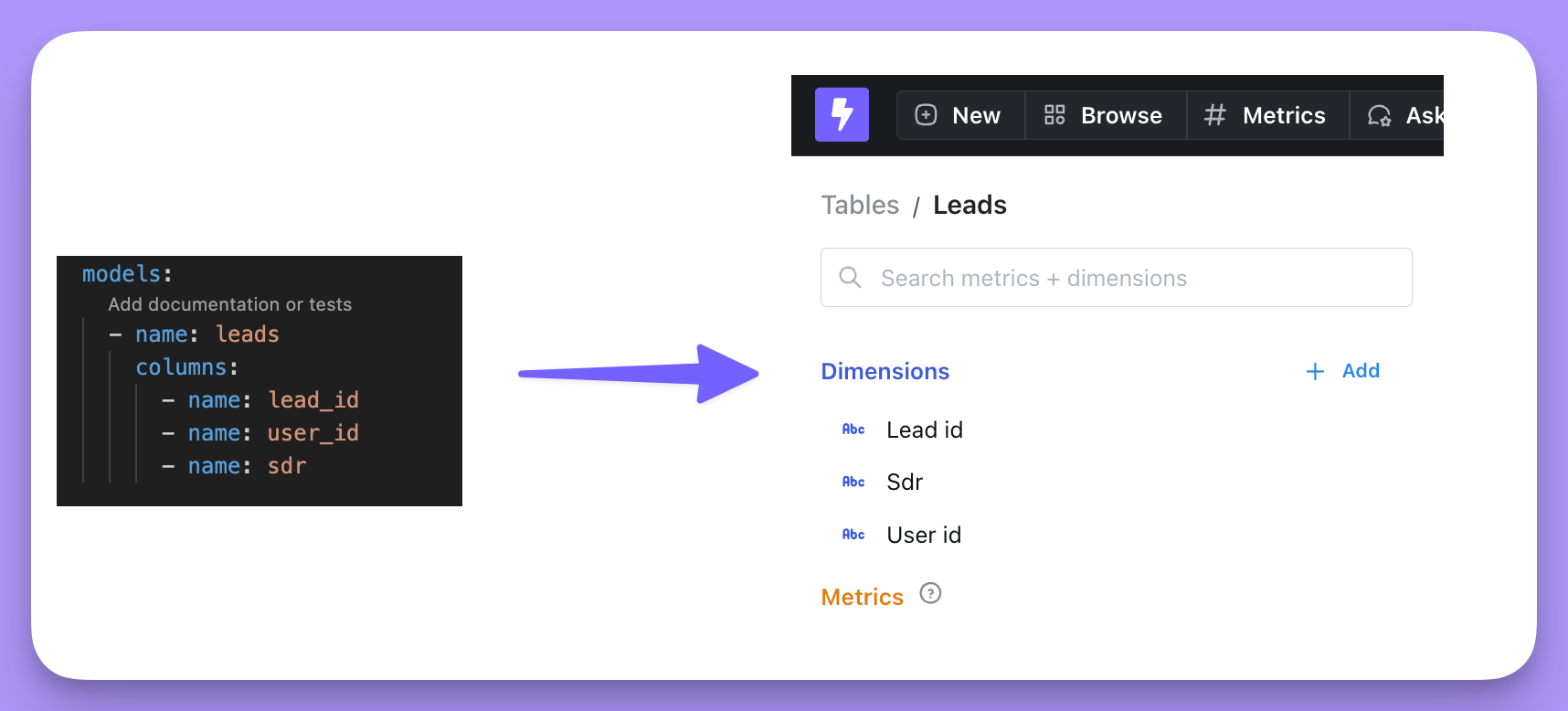
Dimensions.
For example, if we have a leads.yml file, we’d have a Table called Leads and it would have the dimensions: Lead id, User id, and sdr.
Step 4: Create your project
Now, your dbt project is Lightdash-ready! Just run this command and follow the link to start exploring your data:Next steps: Update your project connection settings
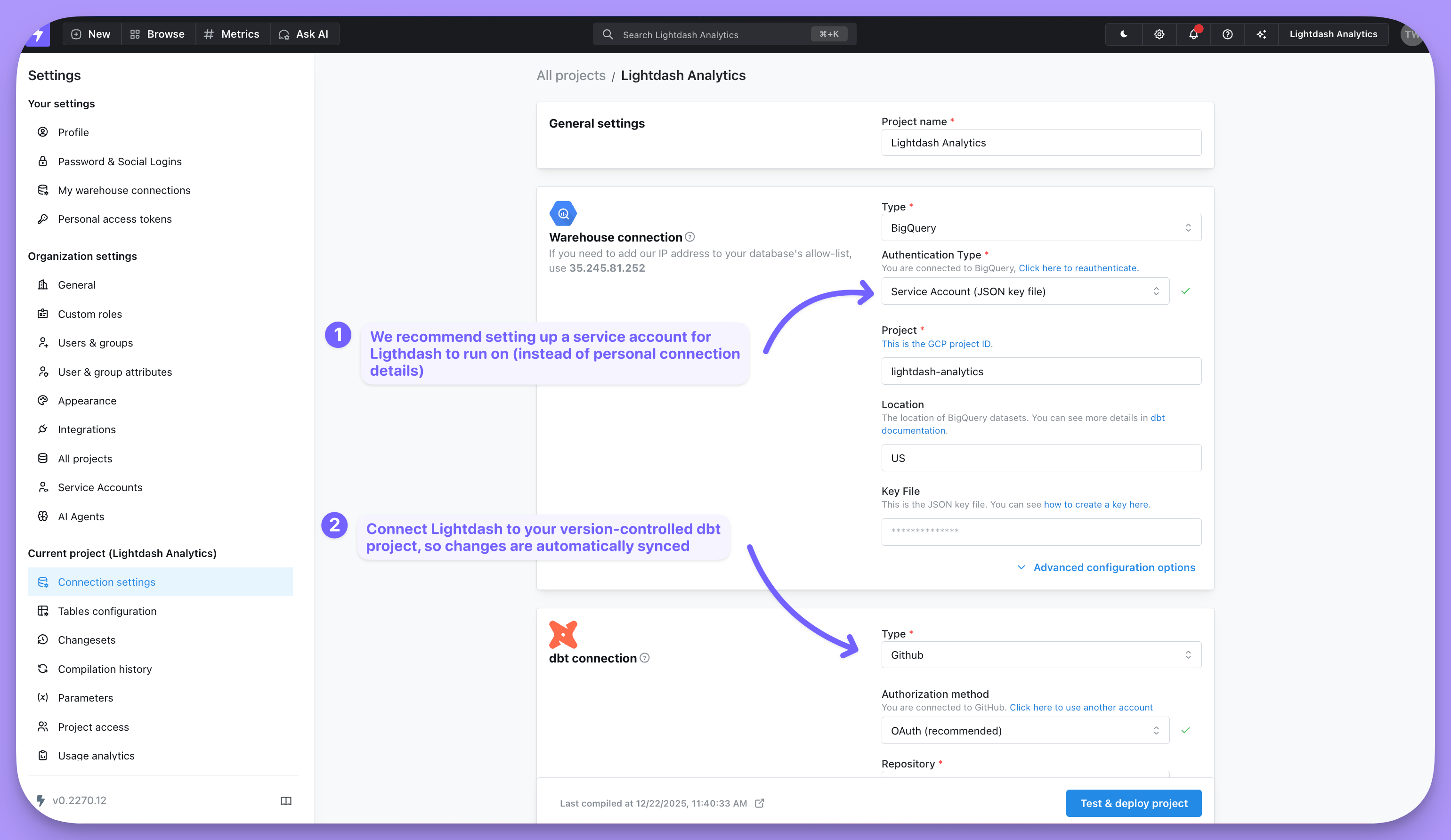
We create your first project using your local dbtprofiles.yml file. So, you might want to update your connection settings to:
- Set up a service account for Lightdash to run on (instead of using your personal connection details)
- Connect Lightdash to your version controlled dbt project so changes are automatically synced.